ShareX can upload a screenshot and put its link on your clipboard. Use the swiftimg ShareX setup page for the current downloadable uploader and exact configuration steps.
Set up one successful upload
- Create a free account and an API key in your account.
- Download and import the ShareX uploader. In the custom uploader settings, add
Authorization: Bearer YOUR_API_KEYas a request header. - Select swiftimg as the custom image uploader. Enable the ShareX after-capture task to upload the image and the after-upload task to copy its URL.
- Capture a non-sensitive sample. Open the copied link, confirm the image appears, and check it in your account library.
Free uploads are public. Paid accounts can choose private uploads; commercial use requires Business. A generated uploader file containing your key is a credential: keep it out of repositories and shared screenshots.
Pick the right link
The downloaded uploader copies {json:pageUrl}, a viewer page. For Markdown image embeds, set its URL field to {json:directUrl}. The thumbnail field does not control the clipboard URL. See the README tutorial for a working embed.
When an upload fails
- Bot check failed or authentication error: confirm the Authorization header has the Bearer prefix, a space, and the active key. Do not try to solve a browser challenge inside ShareX.
- File too large or quota reached: check the limits on your plan, resize the image, or wait for the applicable quota to reset.
- Upload works but no link is copied: enable the copy-URL after-upload task and check the JSON URL field.
- Private link fails for another person: share an authorized viewer link. A private upload is not a public image embed.
Edit before sharing
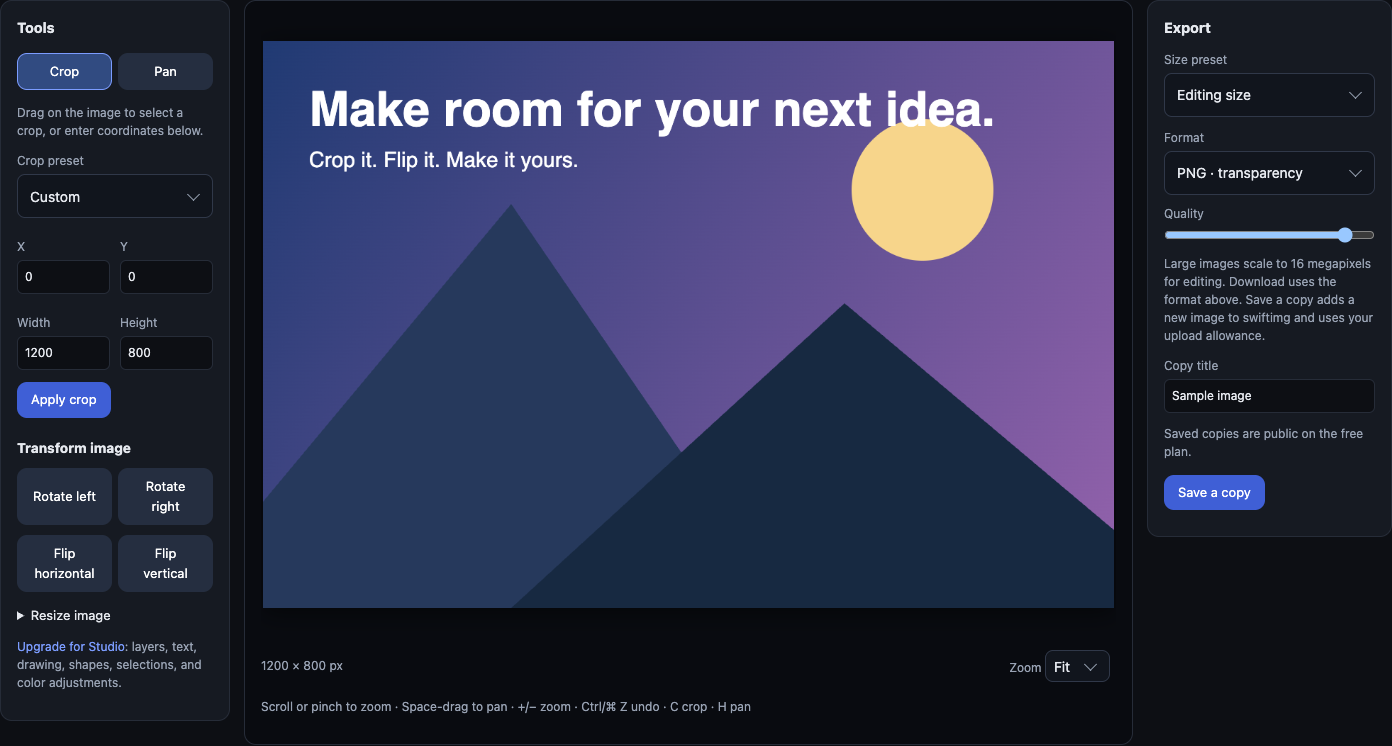
For a manual workflow, use the free image editor to crop or resize, export a file, then upload it. Review the image before making it public.
On macOS or Linux, use the CLI workflow. For automated uploads, start with the API documentation.